How to use the camera in the Translate app
- Open the Translate app. It comes with the iPhone.
- Tap Camera. Hold the iPhone so the text is on screen. As you move it, the translation updates in real time.
- Freeze the image. Tap the shutter to hold the view, then zoom in to read the overlaid translation.
- Copy, save or play a line. Tap an overlaid translation to see the details and choose an option.
These are Apple's steps[1]. Apple's examples are a restaurant menu and street signs, and translation works for the languages Apple supports[1].
How to translate a photo on iPhone
In the Translate app, tap Camera, tap the photo button and pick a picture that contains text. You can switch languages, then share or save the translated image[1].
Live Text does the same from the Photos app. Open the photo, tap the Live Text button in the corner, then tap Translate and choose a language[2]. Live Text also lets you select and copy the text in a photo. It needs an iPhone XS, iPhone XR or later with iOS 15 or later[2].
Where the camera stops for a document
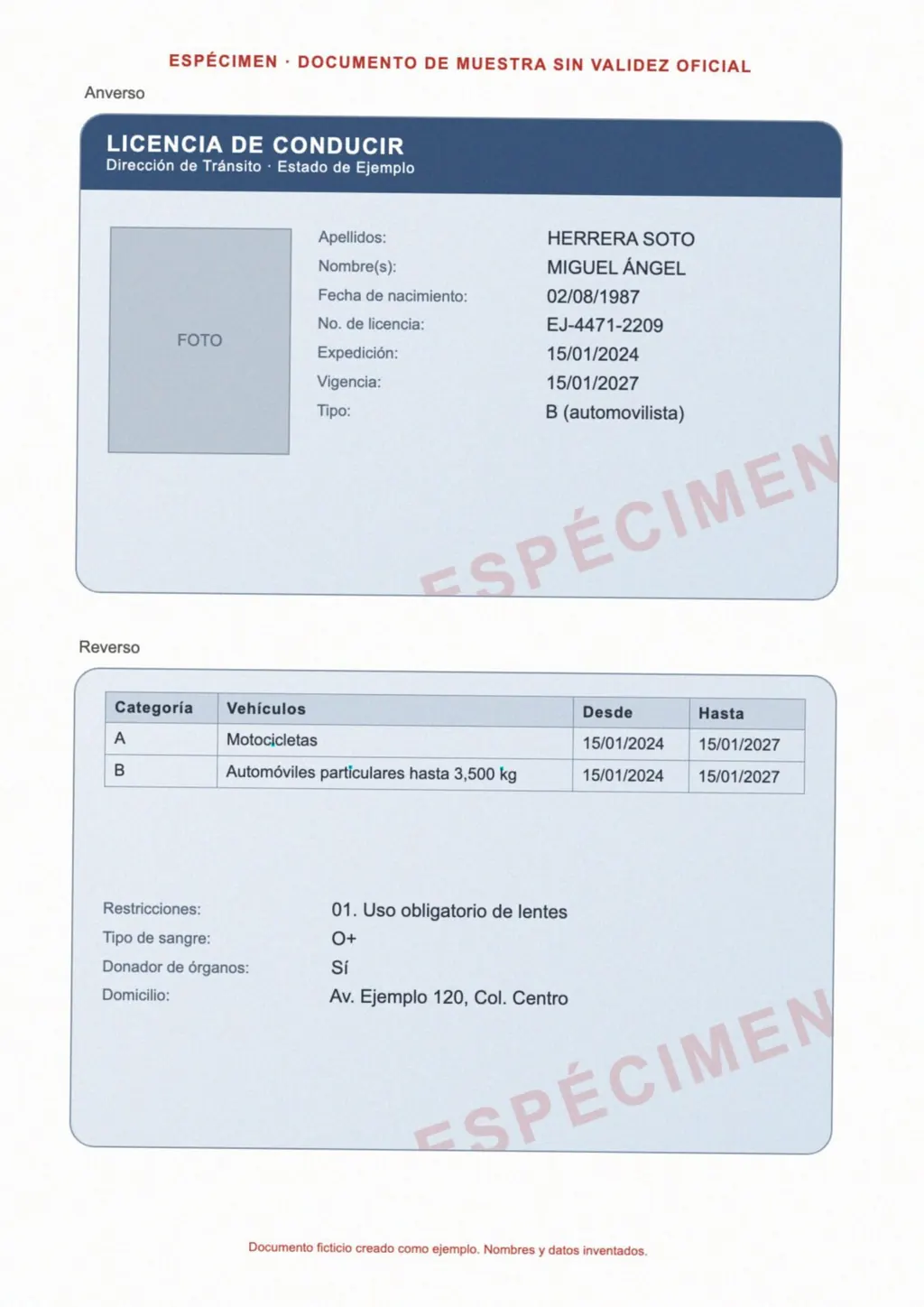
Camera translation lays the translated words over the picture. For a sign or a menu that is what you want. For a birth certificate, a lease or a three-page letter, you usually need something you can keep, edit and send, with the fields in the right order.
- The camera translates what is on screen, so a multi-page document means one capture per page.
- What you save is a translated image or a copied line, not a file you can edit[1].
- Tables and form fields stay as a picture, so you cannot change a value or a name.
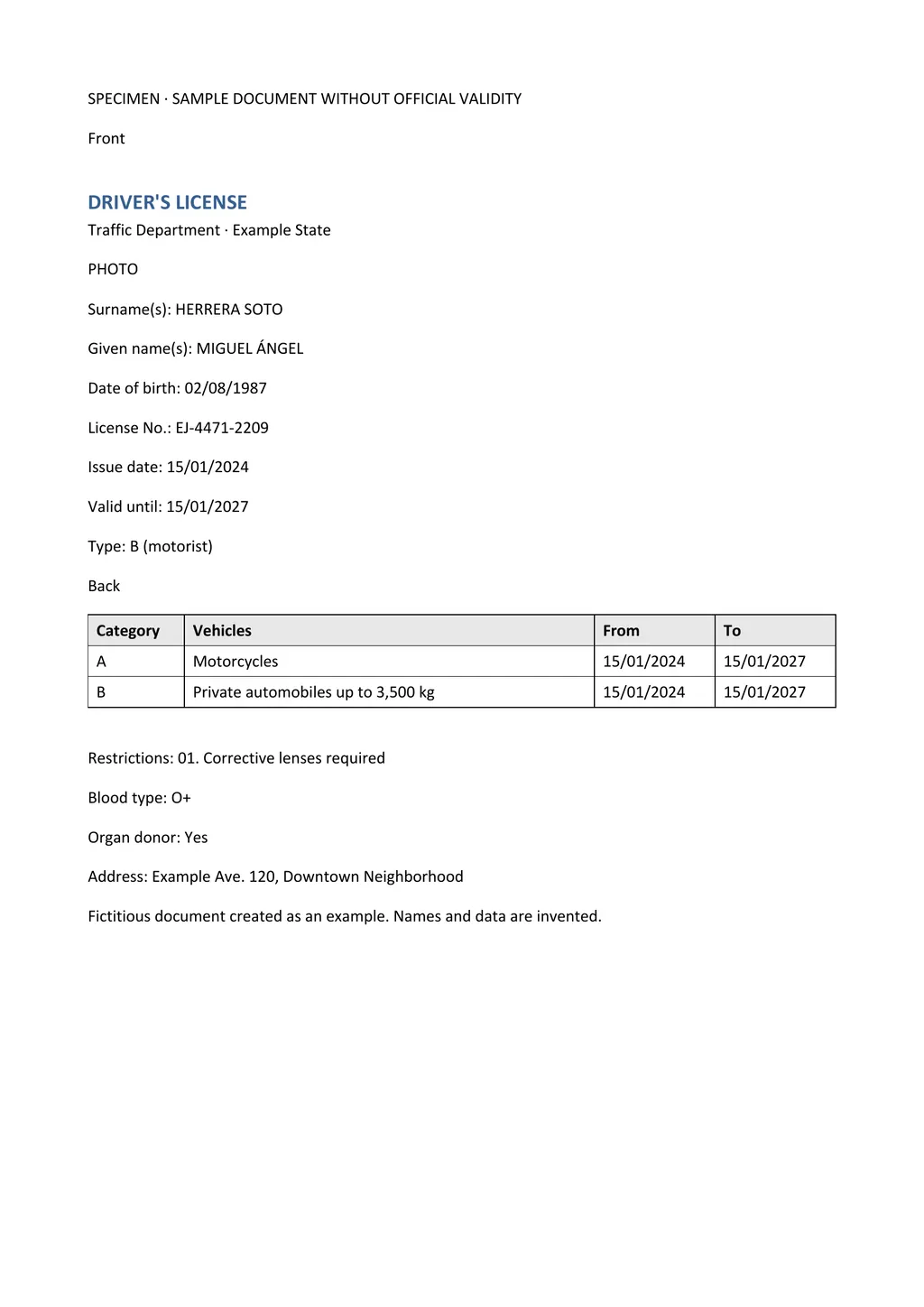
LoreAI takes the photos or a scanned PDF and returns one Word file. It reads every page with OCR, including stamps and handwriting, translates into any of 105 languages and rebuilds the tables as Word tables. Names, dates and numbers stay as written, and names in non-Latin scripts are romanized.
iPhone Translate camera and LoreAI side by side
| What you need | iPhone Translate camera | LoreAI |
|---|---|---|
| File types | Live camera view or a photo from the library[1] | PDF, JPG and PNG |
| Document length | The text on screen, or one photo[1] | Free 3, Basic 30, Pro 100 pages |
| Scanned pages | Photos from the library; no PDF option in Apple's steps[1] | Read with OCR, then translated |
| What you download | A translated image, or a copied line[1] | An editable Word file (.docx) |
| On a phone | Built into iPhone[1] | Works in a phone browser |
| Price | Free | First document free, then Basic at $12.99 a month |
Translate a document from your iPhone with LoreAI
- Scan or photograph each page. Use Notes, the Camera app or any scanner app.
- Open LoreAI in Safari and upload. Your first document is free, up to 3 pages.
- Pick the language and download. The Word file opens in Word, Pages or Google Docs on the phone.
For picture translation on other platforms, see translate an image to English and the Google Lens alternative. For iPhone scanning apps, see the best scanner app for iPhone.
Neither one certifies a translation
LoreAI is not a certified translation service, and the Translate app is not one either. For USCIS, courts or universities, a translator signs a certification. The guide to getting a certified translation explains how to get one.
Questions people ask
How do I translate a picture on my iPhone?
Can the iPhone translate text live with the camera?
Yes. In the Translate app, tap Camera and the text is translated in real time as you move the phone[1].
Can I save a camera translation?
You can copy, save or play a line, and share or save a translated photo as an image[1]. For an editable file, LoreAI returns a Word document.
Which iPhones have Live Text?
iPhone XS, iPhone XR and later with iOS 15 or later[2].
Sources
- Apple iPhone User Guide: Use the camera in the Translate app on iPhone, accessed November 6, 2026
- Apple Support: Copy and translate text from photos on your iPhone or iPad, accessed November 6, 2026
By Matt Mountain ·