Why some translators return nothing for a scan
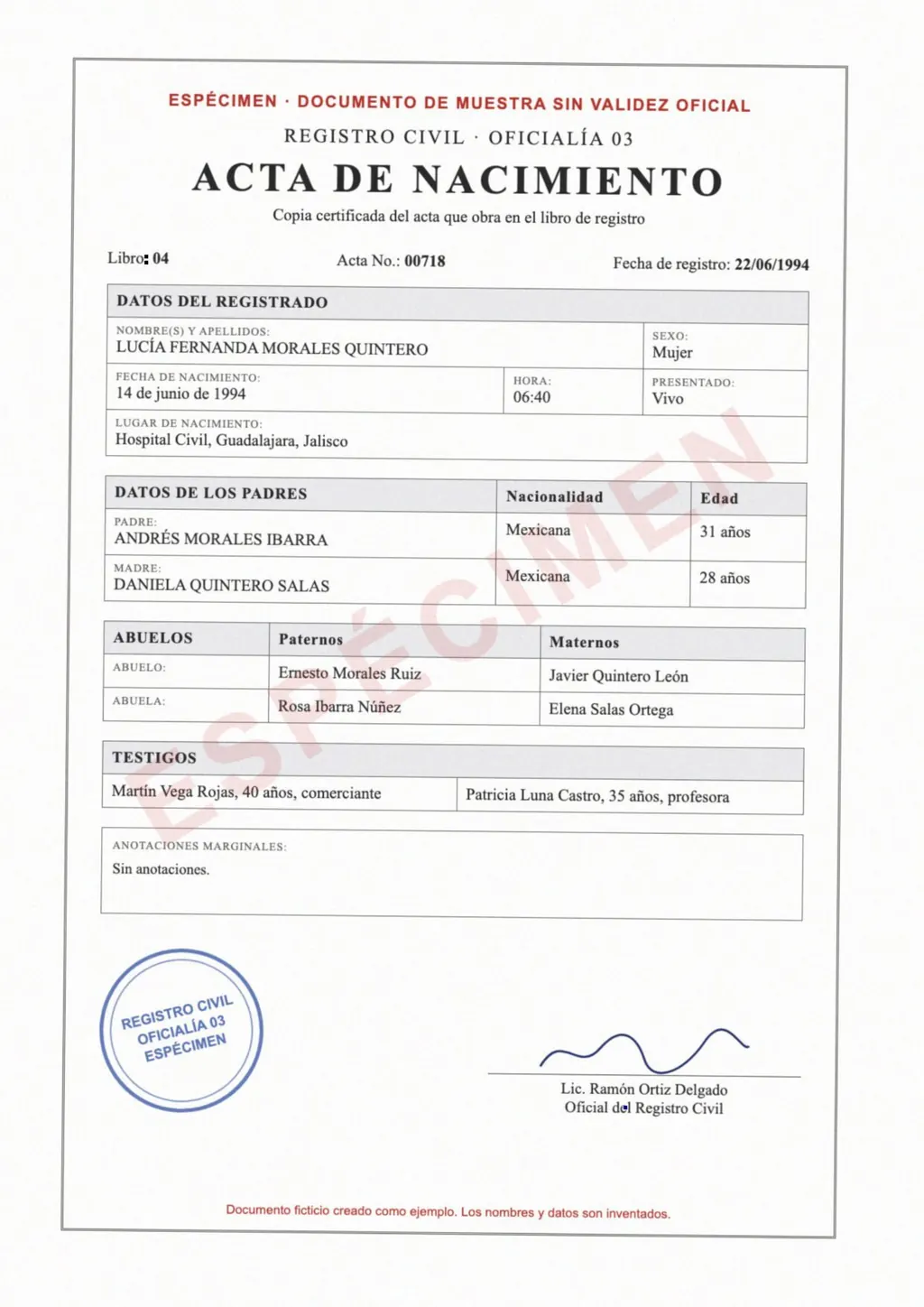
A PDF made by a scanner or a phone is usually a stack of images. Tools that translate a PDF by reading its text layer find no text, so they return an empty or untranslated file. To translate a scan, the text has to be recognized first (OCR) and then translated. LoreAI does both in one step.
What you get back
- Format
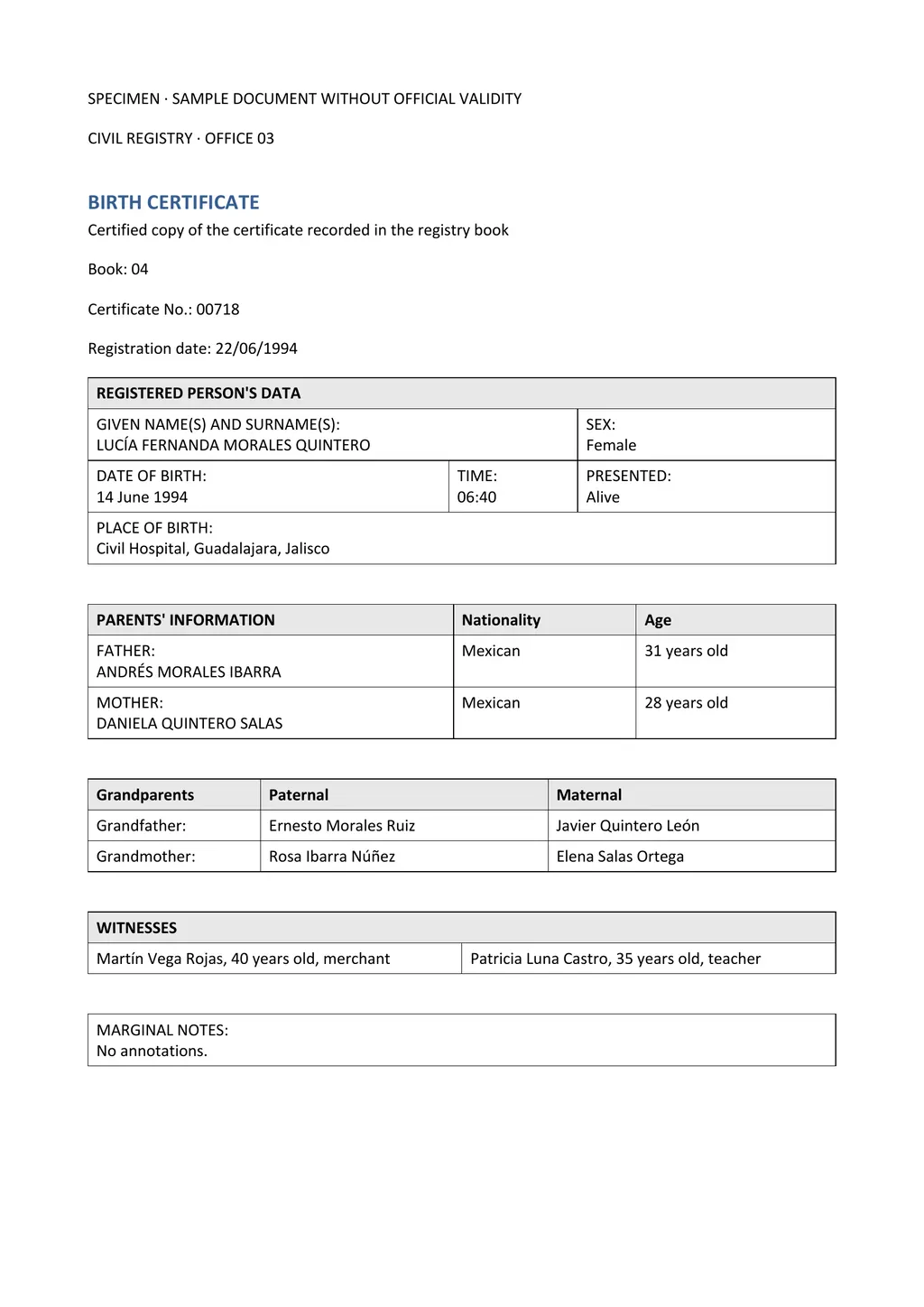
- A .docx file you can edit in Word, Google Docs or LibreOffice.
- Layout
- Tables, headings, lists and paragraphs rebuilt in the same order as the original.
- Languages
- 105 target languages. The source language can be detected automatically.
- Images
- Optional. You can keep the page's images in the Word file or leave them out.
- Size
- Free: 3 pages. Basic: 30 pages and 10 MB. Pro: 100 pages and 25 MB.
How to translate a scanned PDF
- Create a free account and open the upload page.
- Upload the PDF and choose the target language.
- Wait for the processing to finish. A one-page scan takes under a minute.
- Download the Word file and check it.
Getting a better result from a scan
- Scan at 200 to 300 dpi. Lower resolutions blur small print.
- Keep pages straight and flat. Curved pages near a book's spine lose lines.
- Avoid shadows and glare on phone photos.
- Split very long documents into chapters if they exceed your plan's page limit.
Questions people ask
Why can't Google Translate translate my scanned PDF?
A scanned PDF is an image of text. A tool that translates a PDF's text layer has nothing to read. You need OCR first, which LoreAI runs before translating.
Can I edit the result?
Yes. The output is a normal Word document.
Does LoreAI handle tables in scans?
Yes. It rebuilds them as Word tables. Check merged cells and very dense tables after processing.
What about handwriting?
Clear handwriting usually works. Faint or cursive handwriting causes mistakes, so check those parts.